
Making Buttons That Change Materials
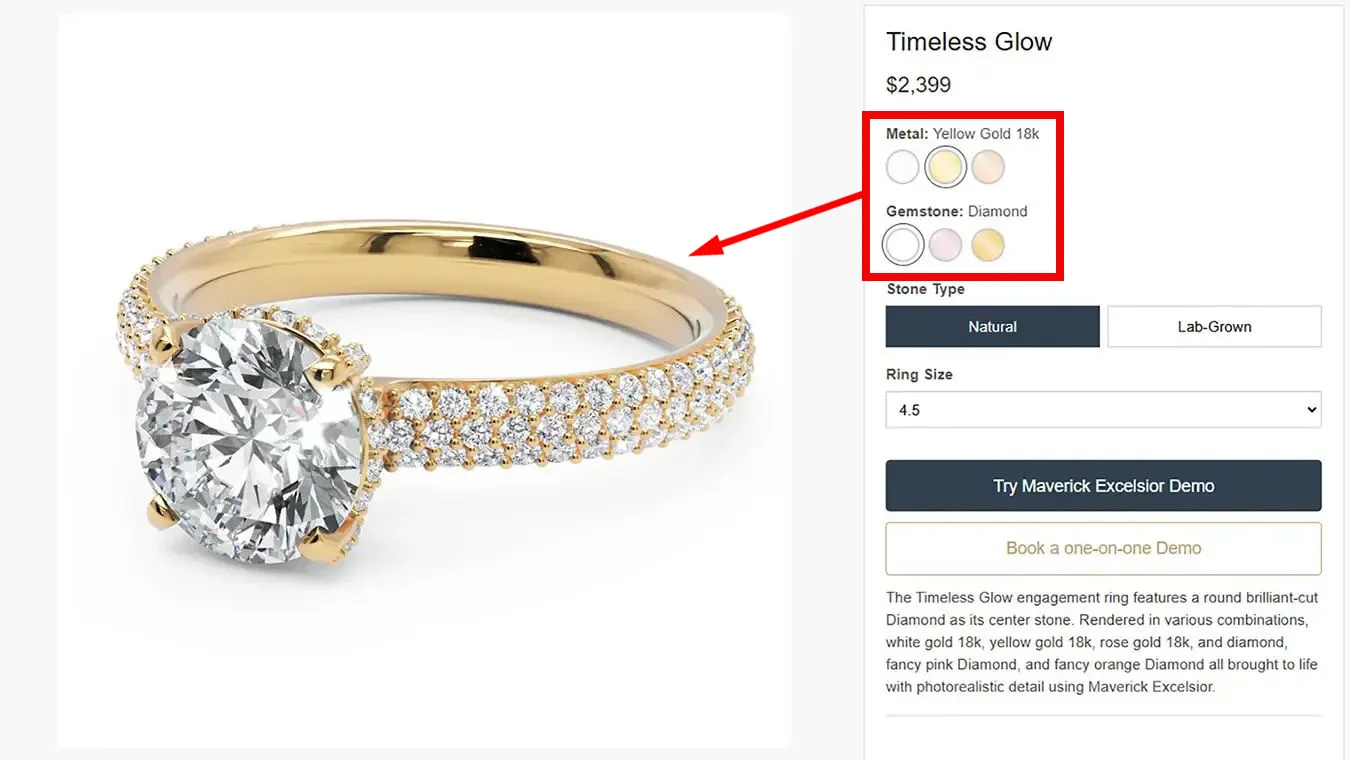
Remember in our last post where we hosted the Maverick Excelsior viewer on our own website? Today we're taking it to the next level: making buttons that actually change the materials in your jewelry piece.
Imagine having "Silver" and "Gold" buttons on your product page. When customers click them, the ring instantly changes material. No page refresh, no loading. Just instant feedback.
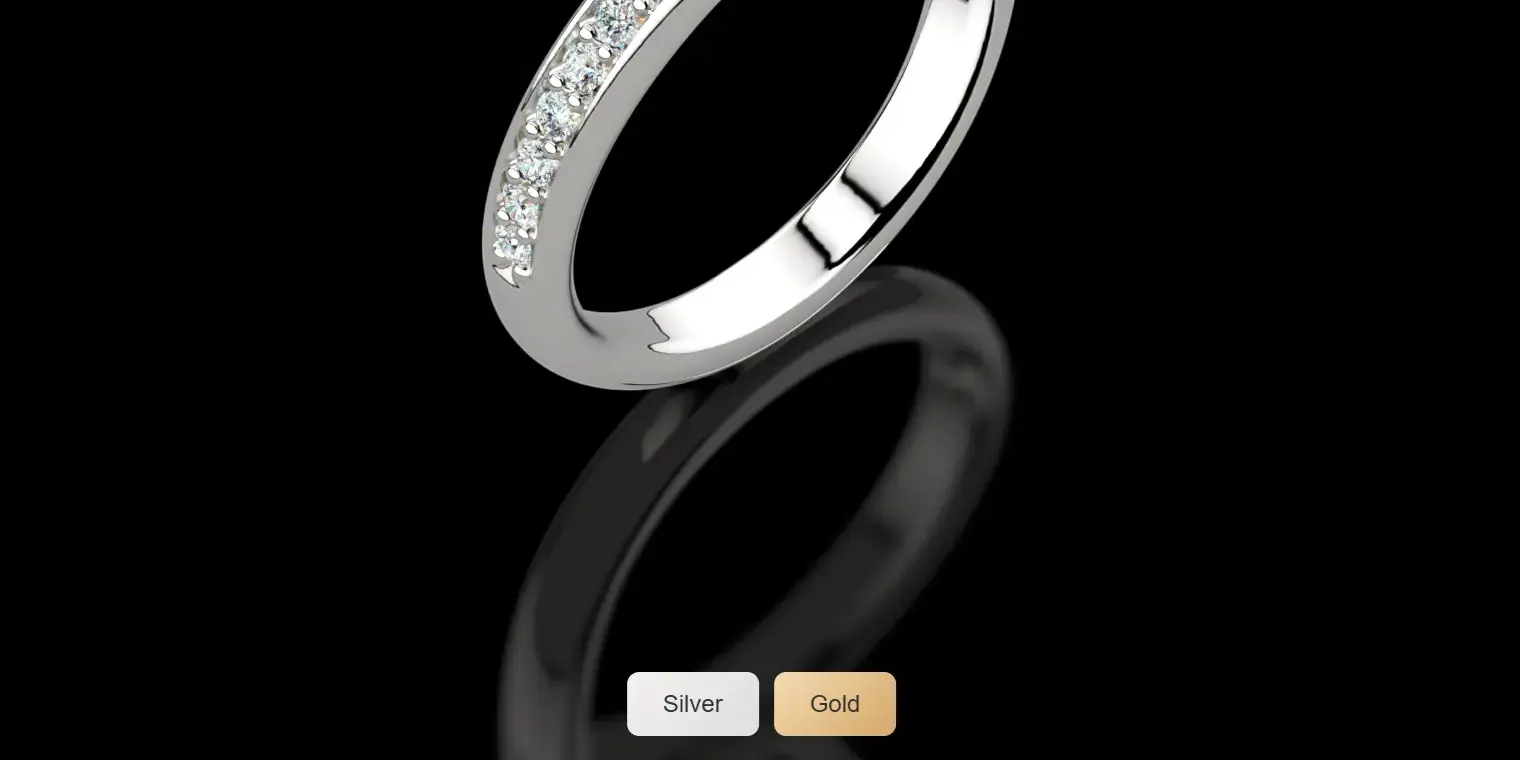
Let's build that.
Live Example: Check out our Maverick Excelsior Jewelry Catalog to see these techniques in action.
The Magic Words
The viewer understands two special JavaScript functions:
wasm_i- This sends commands TO the viewer (like "change this material")wasm_o- This listens for messages FROM the viewer (like "the model finished loading")
Think of it like a conversation. You use wasm_i to tell the viewer what to do, and wasm_o to hear back when things happen.
Let's Build Material Buttons
Here's the complete code. I've highlighted the new parts that we're adding on top of the basic viewer from last time:
<!DOCTYPE html>
<html lang="en">

<head>
    <meta charset="UTF-8">
    <meta name="viewport" content="width=device-width,initial-scale=1">
    <title>My Jewelry Configurator</title>
    <style>
        body {
            margin: 0;
            padding: 0;
            font-family: system-ui, -apple-system, sans-serif;
        }

        #viewer-container {
            width: 100vw;
            height: 100vh;
            position: relative;
        }

        #canvas-viewer {
            width: 100%;
            height: 100%;
            display: block;
        }

        /* 🆕 NEW: Our material buttons. Style them however you like. */
        .material-buttons {
            position: absolute;
            bottom: 20px;
            left: 50%;
            transform: translateX(-50%);
            display: flex;
            gap: 10px;
            z-index: 10;
        }

        .material-buttons button {
            padding: 12px 24px;
            font-size: 16px;
            font-weight: 500;
            border: none;
            border-radius: 8px;
            cursor: pointer;
            transition: transform 0.2s;
        }

        .material-buttons button:hover {
            transform: scale(1.05);
        }

        button.silver {
            background: linear-gradient(135deg, #f3f1f0, #ddd);
            color: #333;
        }

        button.gold {
            background: linear-gradient(135deg, #f4dab0, #d4a76a);
            color: #333;
        }
    </style>
</head>

<body>
    <div id="viewer-container">
        <canvas id="canvas-viewer" width="350" height="350"></canvas>

        <!-- 🆕 NEW: Here are the material buttons! -->
        <div class="material-buttons">
            <button class="silver" onclick="apply_material('Silver 925')">Silver</button>
            <button class="gold" onclick="apply_material('Yellow Gold 18k')">Gold</button>
        </div>
    </div>

    <script>
        // 🆕 NEW: Function to change materials
        function apply_material(material_name) {
            // Check if viewer is ready
            if (window.wasm_i && typeof window.wasm_i === 'function') {
                // Tell the viewer: "Apply this material to the Metal layer"
                window.wasm_i('apply_mtl', 'Metal 01', material_name);
            } else {
                console.log('Viewer not ready yet');
            }
        }

        // Load script helper (same as before)
        function load_script(src) {
            return new Promise((resolve, reject) => {
                const script = document.createElement('script');
                script.src = src;
                script.onload = resolve;
                script.onerror = reject;
                document.head.appendChild(script);
            });
        }

        // Initialize the viewer
        async function init() {
            const cdn_base = 'https://cdn.jsdelivr.net/gh/randomcontrol/webex-viewer@latest';

            await load_script(`${cdn_base}/webex-viewer-module.js`);

            window.Module = window.Module || {};
            window.Module.json = {
                set_clear_color: '000000',
                open_scene: 'https://mycompany.com/my-ring.webex'
            };

            // 🆕 NEW: Listen for when the model finishes loading
            window.wasm_o = function (op, d0, d1, d2) {
                if (op === 'open_scene_complete') {
                    console.log('Model loaded! Ready for material changes');
                    // Set default material
                    apply_material('Silver 925');
                }
            };

            await load_script(`${cdn_base}/webex-viewer.js`);
        }

        // Start when page loads
        if (document.readyState === 'loading') {
            document.addEventListener('DOMContentLoaded', init);
        } else {
            init();
        }
    </script>
</body>

</html>
The Important Parts Explained
1. The Apply Material Function
function apply_material(material_name) {
    if (window.wasm_i && typeof window.wasm_i === 'function') {
        window.wasm_i('apply_mtl', 'Metal 01', material_name);
    }
}
This is where the magic happens. We're telling the viewer: "Hey, apply this material to this layer."
'apply_mtl'- The command (means "apply material")'Metal 01'- The layer name in your modelmaterial_name- The material to apply (like'Silver 925'or'Yellow Gold 18k')
2. Listening for the Model to Load
window.wasm_o = function (op, d0, d1, d2) {
    if (op === 'open_scene_complete') {
        // Model is ready! Now we can change materials
        apply_material('Silver 925');
    }
};
This listens for the viewer to say "I'm done loading the model." Only then can we start changing materials.
3. The Buttons
<button onclick="apply_material('Silver 925')">Silver</button>
<button onclick="apply_material('Yellow Gold 18k')">Gold</button>
Simple HTML buttons that call our function when clicked. Nothing fancy here. Since these are just regular HTML and CSS, you can style them however you want and place them anywhere on your page.
Important: The layer name (like 'Metal 01') must match exactly what you named it in Rhino. The material name (like 'Silver 925') can be any of the built-in materials from Maverick Excelsior.
Pro Tips
- Wait for the model to load - Always check if
wasm_iexists before using it - Use the exact layer names - They're case-sensitive. "Metal 01" is not the same as "metal 01"
- Test on mobile - Your buttons should be big enough for fingers, not just mouse clicks
Beyond Materials: What Else Can You Control?
Changing materials is just the beginning. The wasm_i function can do much more:
- Camera control: Zoom the view
- Animation: Trigger turntable rotation
- ...
All these commands and more are documented at docs.maverickexcelsior.com.
What's Next?
Now that you can control the viewer, you might want to:
- Update your product price when materials change
- Save the customer's selection to a shopping cart
- Show a loading spinner while materials change
- Add more options like stone colors or engraving
- Create a full product configurator with multiple customization options
For example, when someone clicks "Gold", you could update the price displayed on your page, change the product description to "18k Yellow Gold Ring", and remember their choice when they click "Add to Cart". The viewer handles the 3D part, and your regular JavaScript handles everything else.
But that's getting into regular web development territory.
Want to see what's possible when you combine all these techniques? Check out our jewelry catalog It's a full example of viewer integration with material switching, dynamic pricing, and more.
The Bottom Line
With about 20 lines of JavaScript, you've turned a 3D model into an interactive product configurator. Your customers can now see exactly what they're buying, in the material they want, before they add it to their cart.
That's the power of talking to your viewer.
Happy configuring!
Questions? Need help? Drop us a line at [email protected].