
Maverick Excelsior Demo - Now With Your Own Models
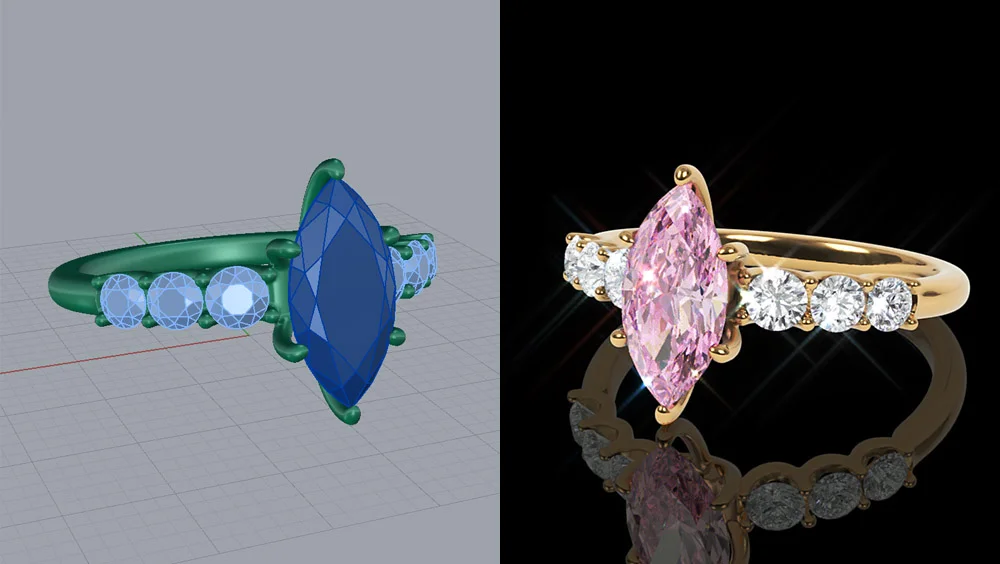
Try Maverick Excelsior With Your Own 3D Models!
We've recently rolled out a massive UI update for Maverick Excelsior. Not only does the new, modernized interface make the whole user experience much smoother, but it also paved the way for our most requested feature ever: you can now test the software using your own models before you buy.
Why the Change?
When Maverick Excelsior was released a couple of years ago, we started an informational campaign for our large base of Maverick jewelry clients, as it is a product that offers significant advantages for many of them.
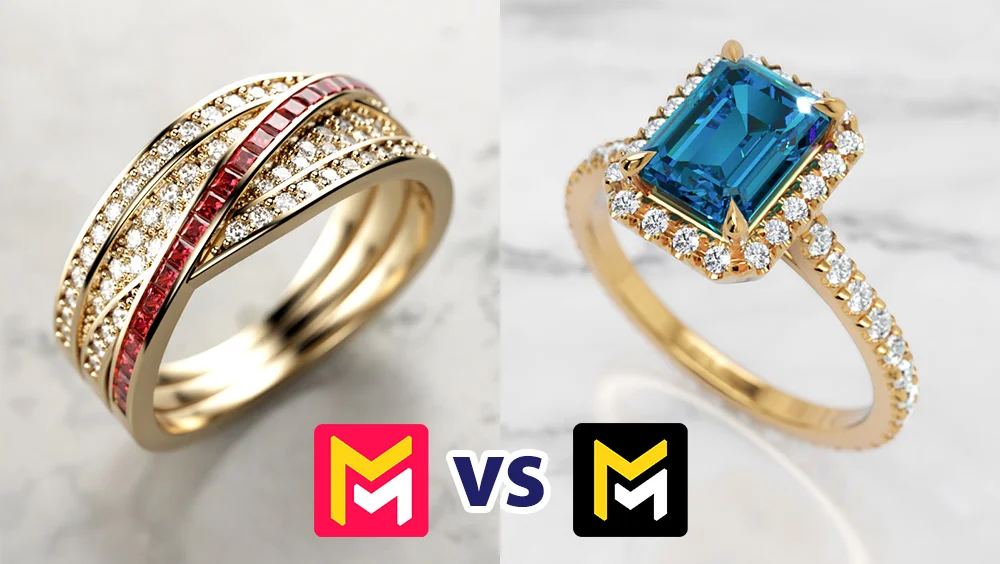
We have covered all of this extensively on this comparison blog post:
Maverick Render vs Maverick Excelsior →
However, until now, the only way to see your own designs in the software was to book a private demo with us, or email our support team your .3dm files so we could send back renders, videos, and interactive links. While that workflow created a lot of happy customers, we know it wasn't ideal for everyone.
Whether you were tied up by strict client NDAs, or you simply prefer the "hands-on" approach of testing software yourself, we heard you.
What's New in the Demo
Our demo version has always included a curated library of scenes designed to let you play around with the software's features. Those are still there (and we still recommend exploring them!), BUT...
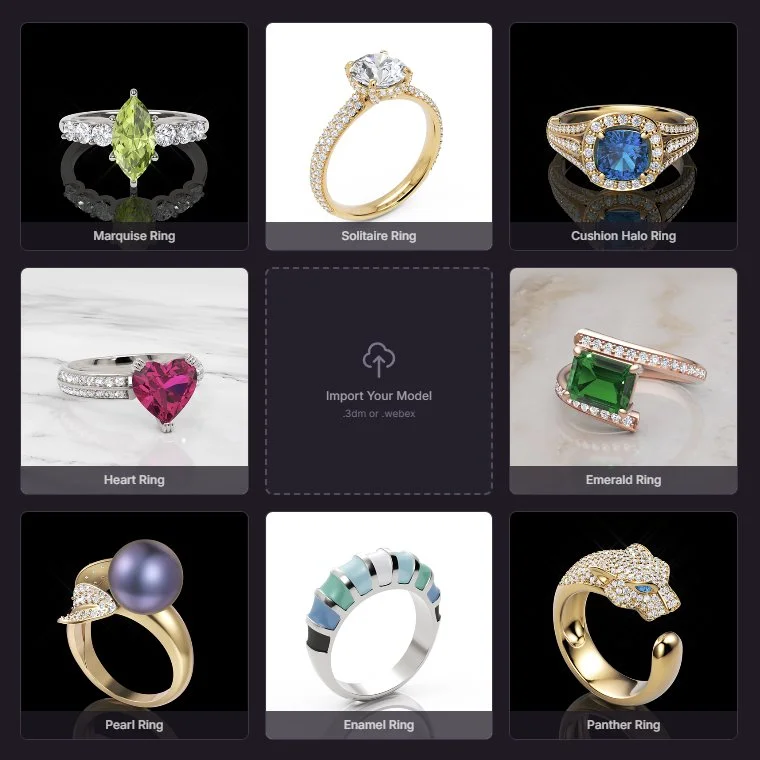
You can now import up to three of your own .3dm files. This means you can finally see exactly how your specific designs will look and perform.
How to Get Started
- Log in: Head to our website, sign in (or create an account), and go to your Dashboard.
- Launch the Demo: Open the Demo Editor.
Maverick Excelsior Demo Editor →
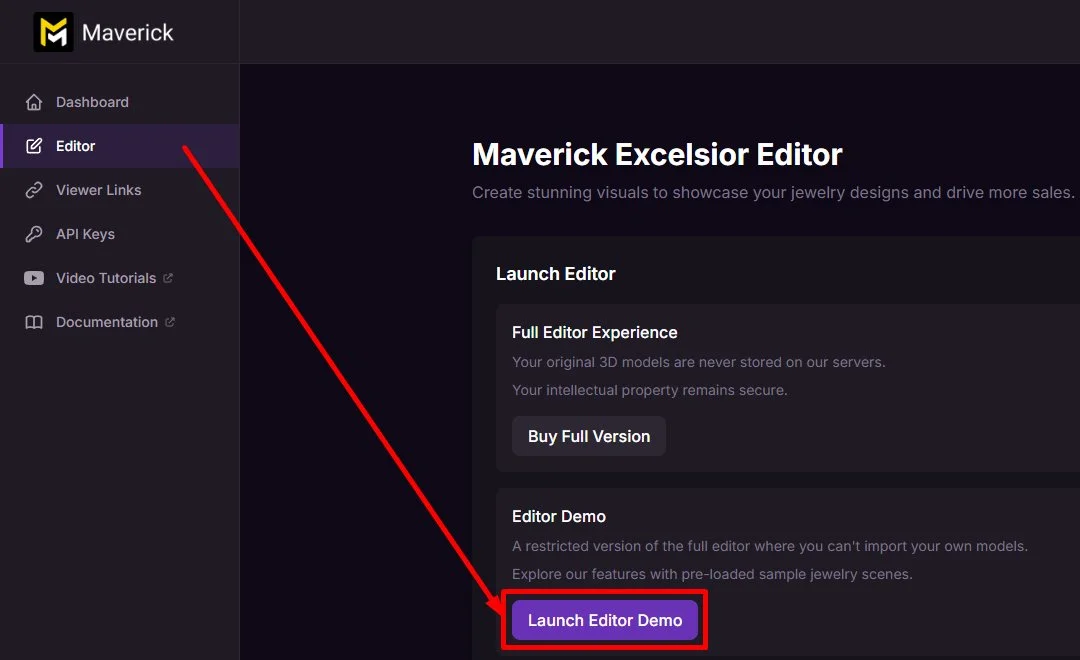
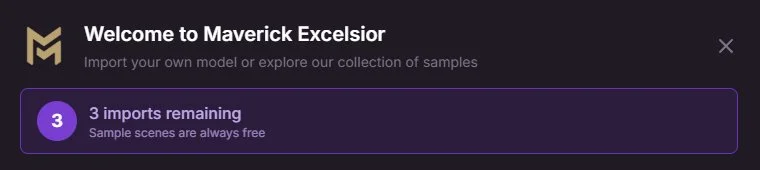
- Drag and Drop: You'll see a welcome screen with our default examples, but you can now just drag and drop your own file right into the center of the screen.

A Quick Tip for a Seamless Import
For the best results, I highly recommend checking out our Docs on model preparation:
But if you're eager to jump right in, just remember this golden rule for your Rhino layers:
- Metal must be on Rhino layers named Metal.
- Gems must be on Rhino layers named Gems.
That's it! If you build your models in Matrix or MatrixGold, they should import perfectly by default.
Playing Around in the Editor
The moment you drop your model in, Maverick Excelsior will automatically apply White Gold to your metals and Diamond to your gems. From there, navigating the viewport is very intuitive:
- Left-Click: Orbit around your jewelry.
- Right-Click: Pan the camera.
- Scroll Wheel: Zoom in and out.
The tool panels at the top are self-explanatory, so go ahead and click through them. If you've been waiting to test your own models, we know it's because you want to get under the hood and tweak the settings!

At the bottom of the screen, you'll find your output tools:
- Take Picture
- Preview Video
- Record Video

Our Advice: Do not skip the video panel! Creating turntable videos is where Maverick Excelsior truly shines. Seeing the realistic light play and that perfect diamond "glare" in motion is exactly what captivates clients and closes sales.
Of course, if you'd like to dive deeper, we highly recommend exploring the full Maverick Excelsior documentation:
Effortless Rendering
If you've spent any time working with other 3D software, you know that getting a photorealistic jewelry render can be a massive, time-consuming headache.
Once you try this demo, you'll see just how accessible and effortless it should be. With Maverick Excelsior, stunning results really are just a few clicks away.
Give it a spin, and as always, if you have any questions or feedback, our support team is just an email away!
Questions? Contact us at [email protected].
Sign up for an account and try Maverick Excelsior today.
Upload your first .3dm model and see the results for yourself.