
Atlas - Stunning Multi-View Renders
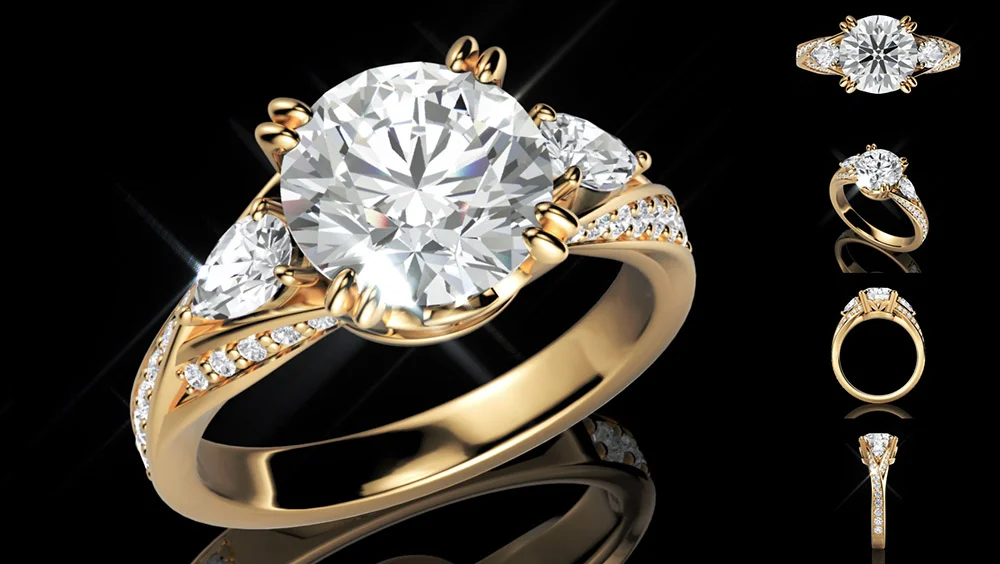
Introducing Atlases: Stunning Multi-View Renders in Maverick Excelsior
Hello, jewelry lovers!
We're thrilled to check off another highly anticipated feature from the Maverick Excelsior roadmap. This time, we are bringing you Atlases.
An Atlas allows you to combine multiple renders of your jewelry model from different angles into a single, cohesive presentation image. If you're coming from Matrix or MatrixGold, you might be familiar with their "Layouts" tool. Atlases serve a similar purpose, but with Maverick's signature photo-real quality.
How to Use the Atlas Feature
Generating an Atlas is incredibly straightforward. Here is how to do it:
Open the Editor: Launch the Maverick Excelsior Editor. You'll spot the brand-new Atlas panel right at the top.

Locate Settings: Your configuration options are neatly organized on the right side of the screen.
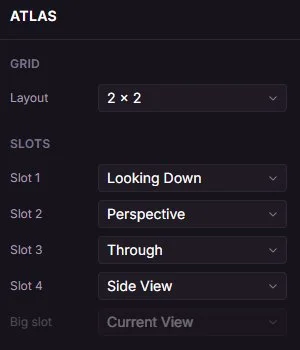
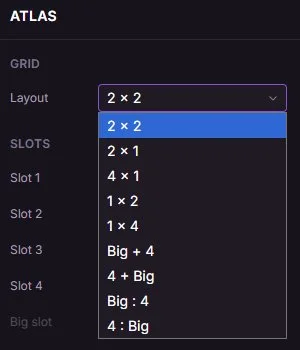
Choose Your Grid: Start by selecting your preferred layout from the Grid dropdown menu.
Set Up Your Views: Next, use the Slots section to assign a specific camera angle to each individual render.
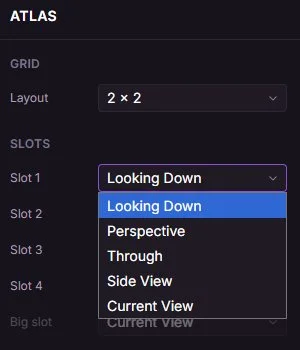
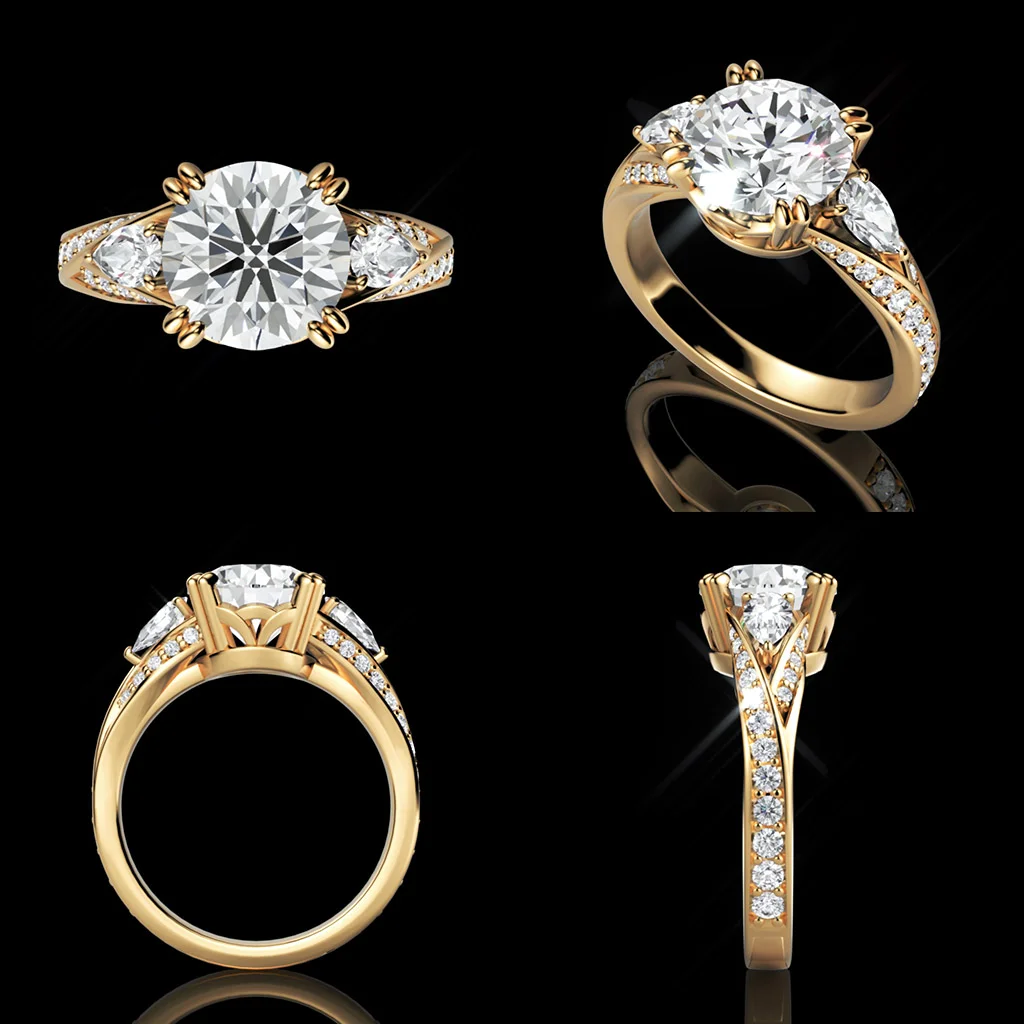
The standard default is a clean
2x2grid featuring the classic jewelry views: Looking Down, Perspective, Through, and Side View.Render: Once everything is set, just hit the Take Atlas button at the bottom. Your beautiful, high-res composition will be ready to download in a matter of seconds!

Included Layouts
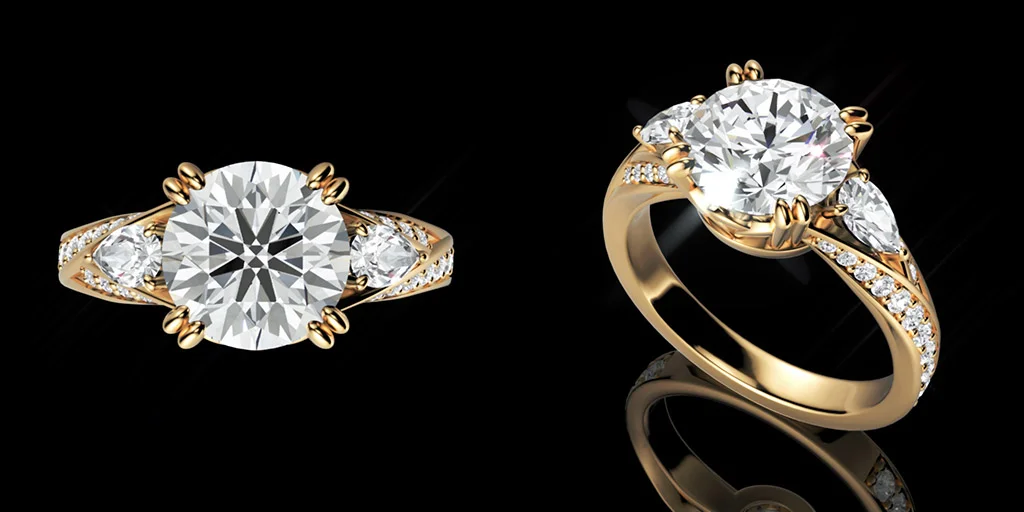
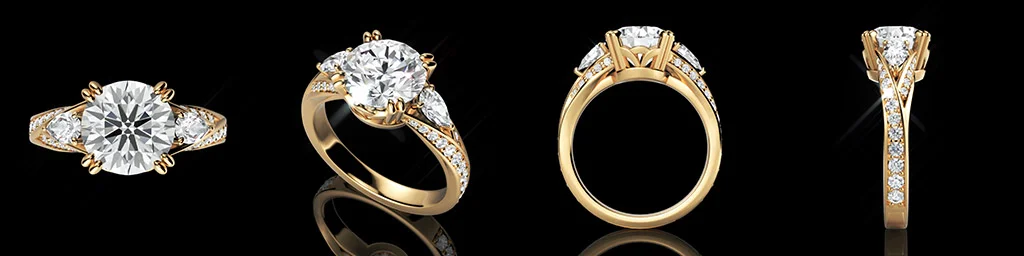
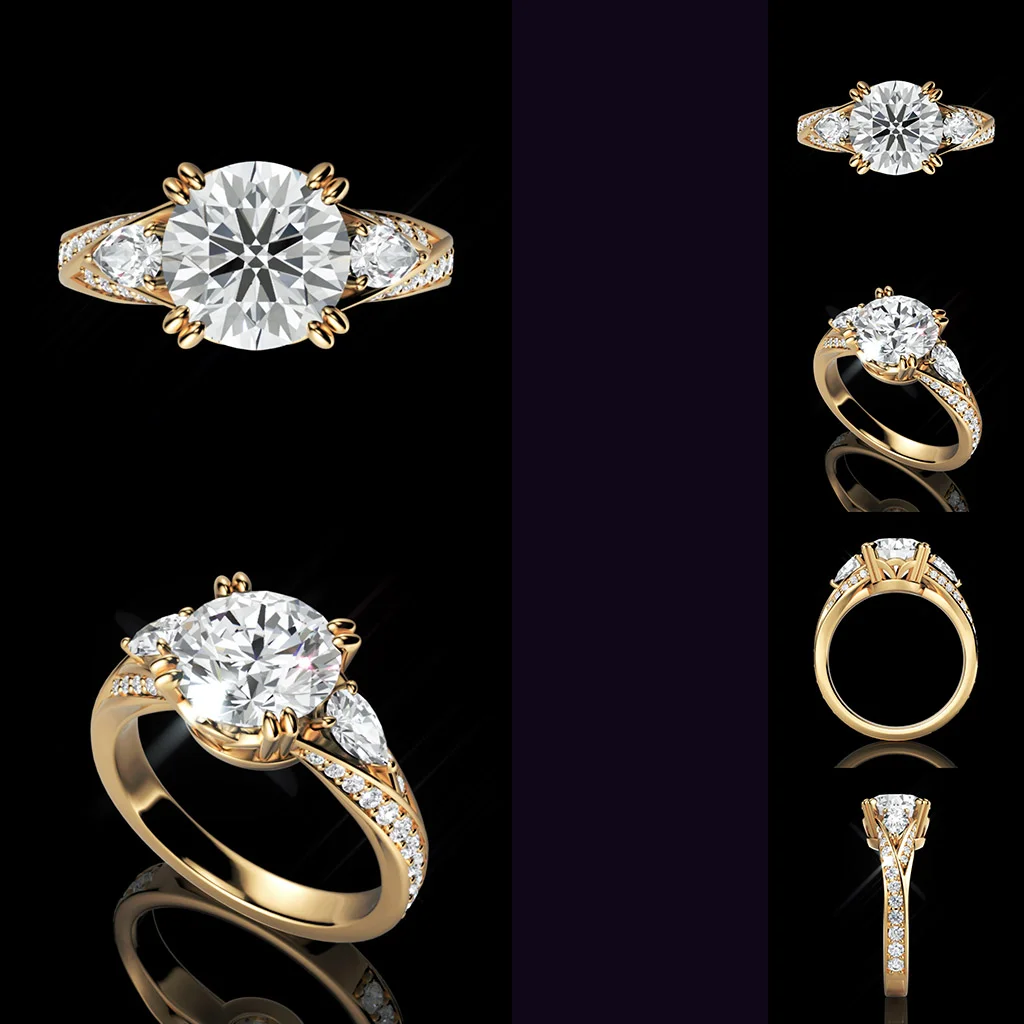
Below are examples of the layouts we've included out of the box:
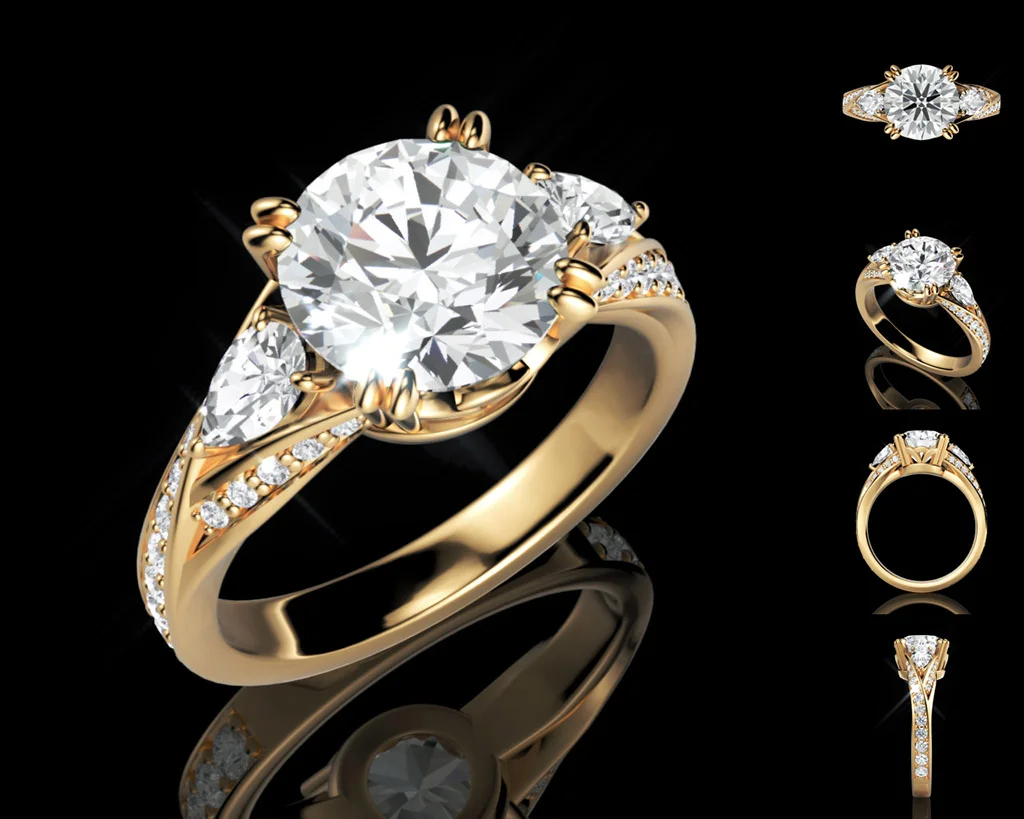
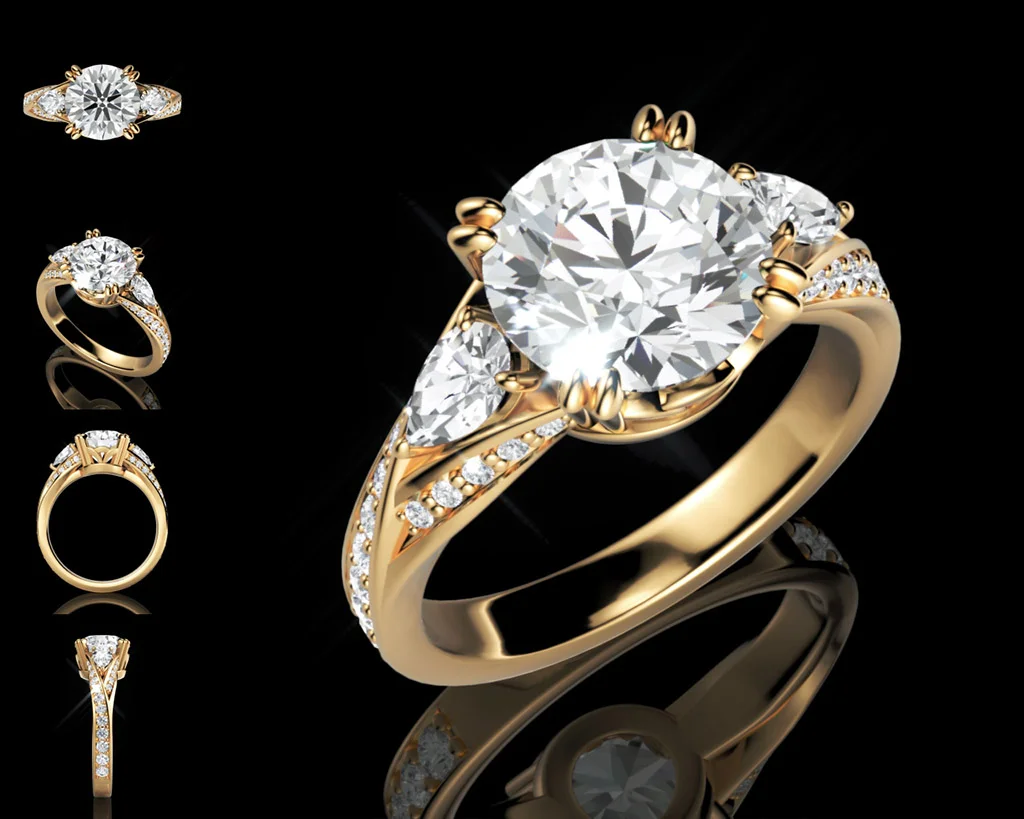
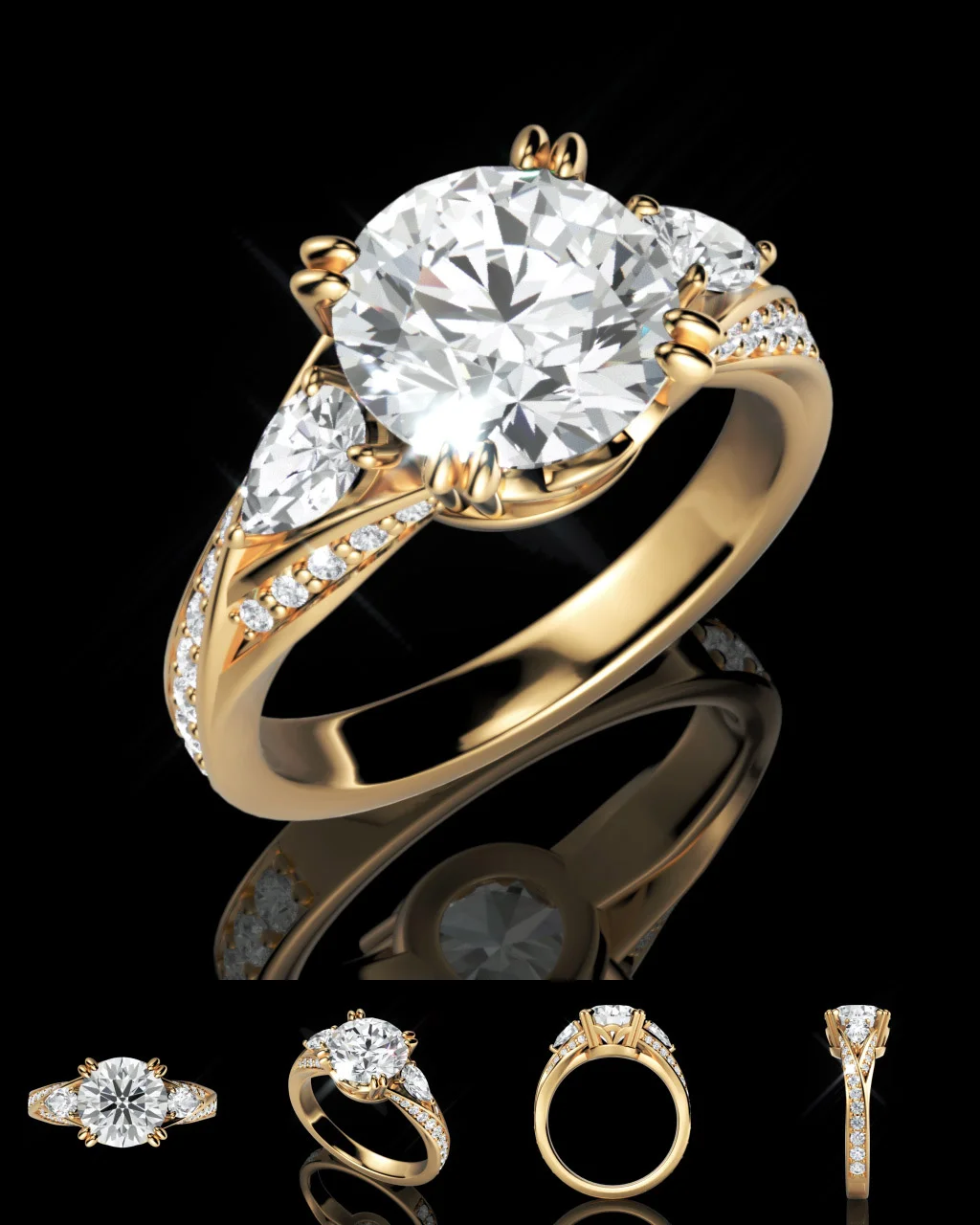
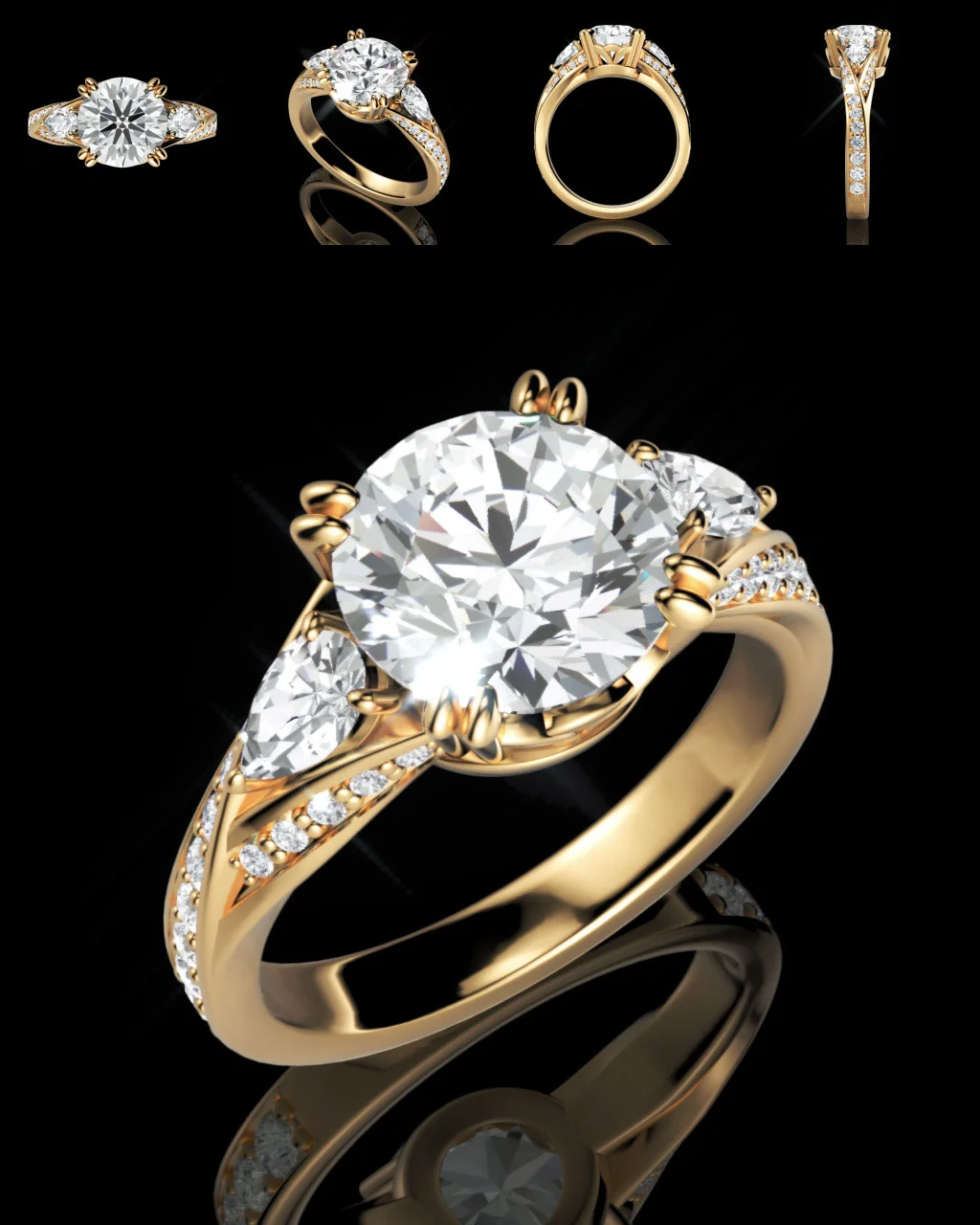
Is there a specific layout you'd love to see added?
We are all ears! Send your feedback and suggestions to [email protected].
Pro Tips for the Perfect Atlas
Understanding Resolution: The overall resolution of your Atlas is calculated by adding the dimensions of your individual renders. For instance, if your Globals resolution is set to
1024x1024and you use a2x2grid, your final image will be2048x2048.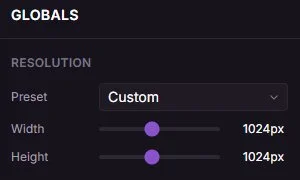
"Big" Layout Dimensions: For layouts featuring a "Big" hero image, that main slot dictates the final output size. If your base resolution in Globals is
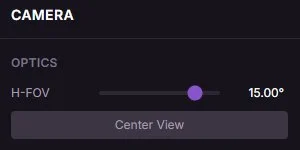
1024x1024and you select a Big + 4 layout, your final image will end up being1280x1024.Using Custom Views: You can easily assign your Editor's Current View to any slot. Just make sure to hit the Center View button in the Camera panel first so your piece is perfectly framed!
YouTube Tutorial
Watch the Atlas feature in action on our YouTube channel:
Ready to Level Up?
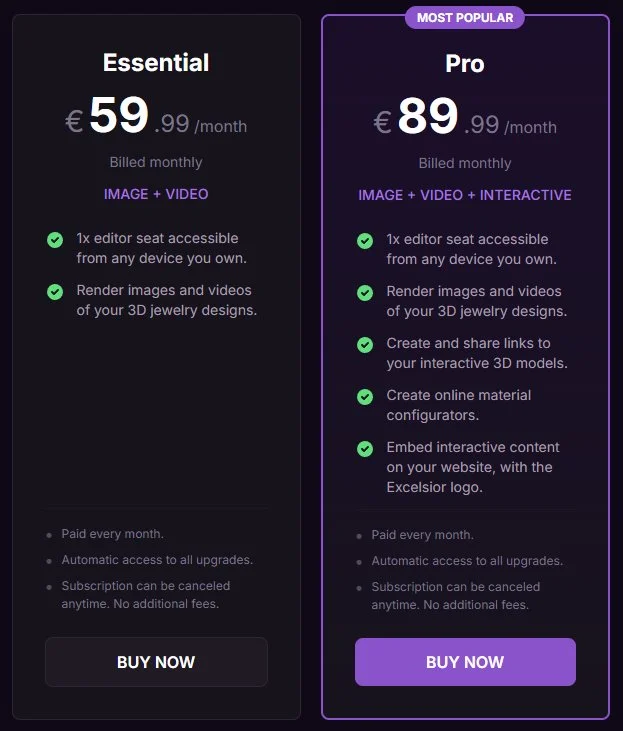
Please note: The Atlas feature is available exclusively for Pro and Pro+ licenses. If you're currently using an Essential license, there has never been a better time to upgrade and supercharge your workflow!*
Sign up for an account and try Maverick Excelsior today.