New Branding Feature: Export Videos with Your Brand Logos
New Branding Feature: Export Videos with Your Brand Logos
Hello, jewelry lovers!
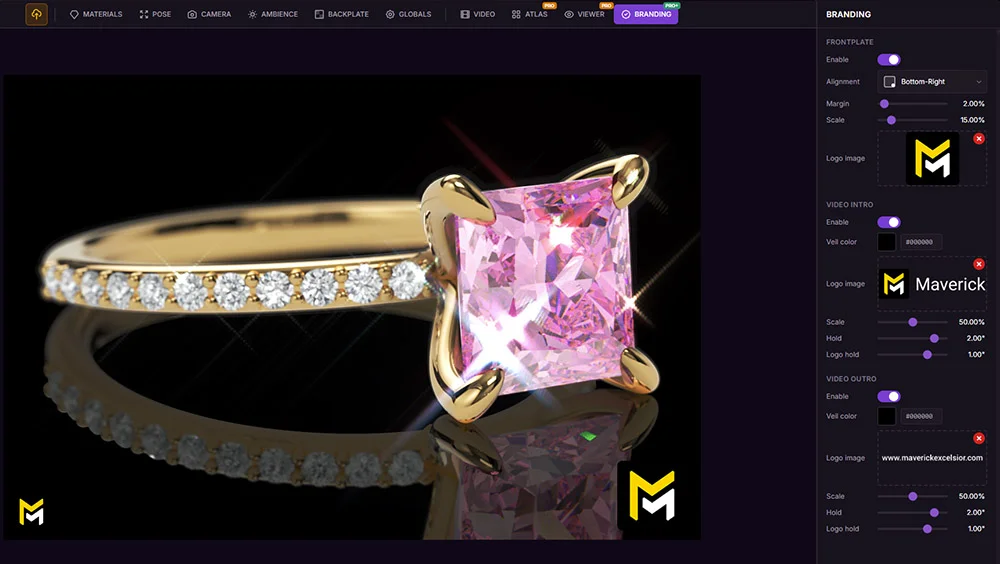
Check out this video taken directly from Maverick Excelsior. Now you can automatically brand your videos with your logo, with no additional software required.
Let's get started.
The Importance of Branding: Perceived Value and Design Protection
Branding is the cornerstone of a jewelry brand's perceived value. When a potential client watches a promotional video for a piece of jewelry, their brain instantly gauges the company's professionalism based on the consistency of its visual elements. High-quality content that lacks a clear signature or a cohesive corporate identity loses much of its commercial impact, easily getting lost in the endless sea of content on digital platforms.
The jewelry industry also faces an ongoing challenge: protecting intellectual property and design authorship. High-definition turntable videos, like the ones generated by Maverick Excelsior, are proven must-haves for online sales due to their high conversion rates, but they are also highly vulnerable to being copied or used without permission. A clean, professionally overlaid logo doesn't just strengthen your brand identity, it also acts as a seal of authenticity and a safeguard against plagiarism.
Traditional Workflow vs. Automation
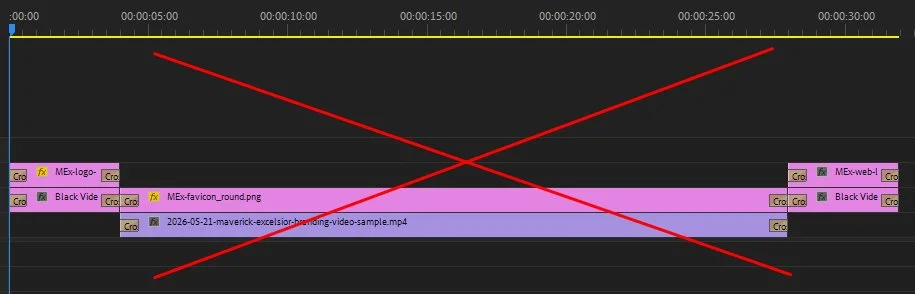
Until recently, adding corporate branding elements (intro logos, persistent watermarks, outro logos) to a photorealistic video was a clumsy and inefficient process. Designers had to export image sequences or raw video files from their 3D rendering engine and pull them into external video editing software like Adobe Premiere, After Effects, or DaVinci Resolve.
This old-school workflow came with several headaches:
- Added costs: the need to buy licenses for multiple specialized programs.
- A steep learning curve: having to master complex post-production and video compression tools.
- Wasted time and resources: every minor tweak to the jewelry's materials or the logo meant re-rendering and rebuilding the timeline in the video editor.
The new Branding panel in Maverick Excelsior cuts out these middlemen entirely. The rendering engine itself automatically packages the final video, fully branded, optimized, and ready to post, in a matter of seconds.
A New Brand-Focused License Built for Everyone
We've already covered why branding is so important in jewelry and how much time and money you can save by letting Maverick Excelsior automate these steps.
These perks will be rolled into a brand-new license tier alongside our existing options.
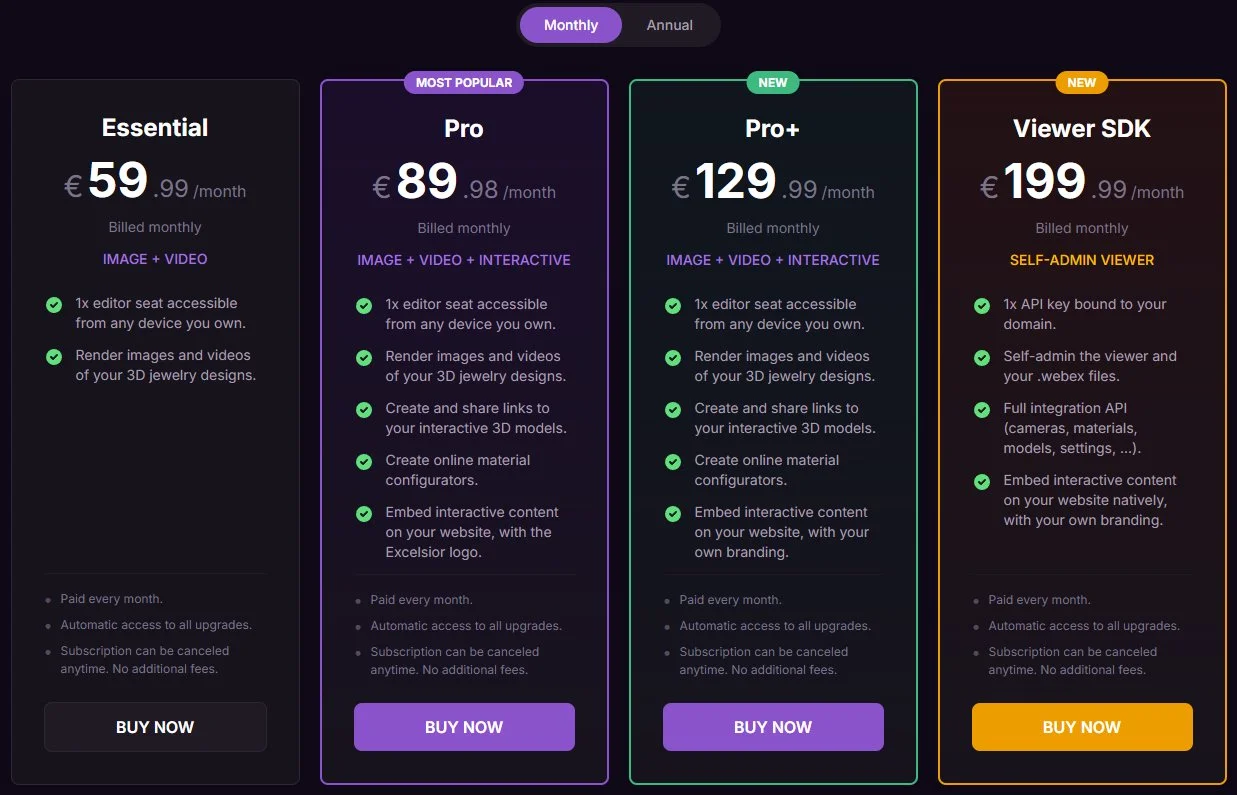
What makes the new Pro+ (Pro Plus) license stand out is its versatility. It natively bakes your brand identity elements into both exported videos and the interactive links you send straight to clients, providing a seamless, end-to-end customer experience.
Step-by-Step Tutorial
Once you've imported your .3dm model, applied materials and lighting ambience, and dialed in your usual settings, head over to the new Branding panel.
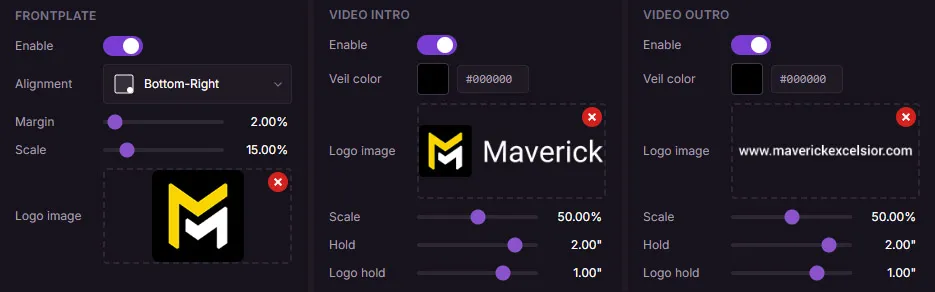
You'll find 3 main elements there.
1. Frontplate
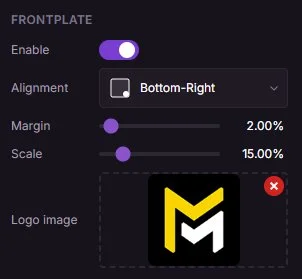
This is where you set up the watermark or logo that will stay visible throughout the entire video.
First, load your logo by clicking the Logo image option and finding the file on your computer.
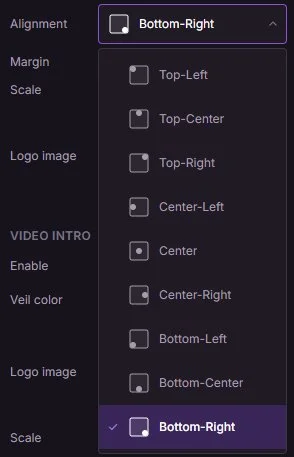
Under Alignment, you can pick exactly where the logo will sit. The bottom right corner is the most common spot, but you have plenty of positioning options to choose from.
Next, you can tweak the Margin (the gap from the edges, in %) and the scale of the logo. You'll see these changes update interactively on the Excelsior canvas.
A quick but important note about logos and how to prep them before bringing them into Maverick Excelsior:
Logos (and really any images you want to use for branding) need to be PNG files with transparency. This is the industry standard, since these logos are used across multiple platforms and need to sit cleanly over various backgrounds.
Creating a transparent PNG is straightforward in any editing software like Photoshop or Affinity. We also recommend Photopea, a fantastic, completely free, browser-based editor.
2. Video Intro
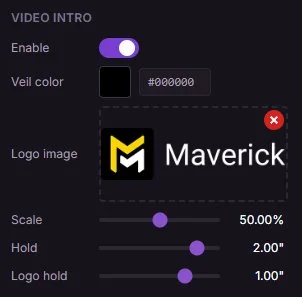
In this section, you set up the video's intro logo.
Once again, just load the logo from your computer.
The settings you can adjust here are:
- Scale, which is always a percentage of the video's resolution.
- Hold and Logo hold, which dictate how many seconds the background color and the logo stay on screen.
Pro Tip: As a rule of thumb, the color Hold should last 1 second longer than the Logo hold. So, if you want the logo on screen for 2 seconds, set the Hold to 3 seconds.
By default, this is set up so the video kicks off with a black background and your logo centered, fading in and out for a slick, professional look.
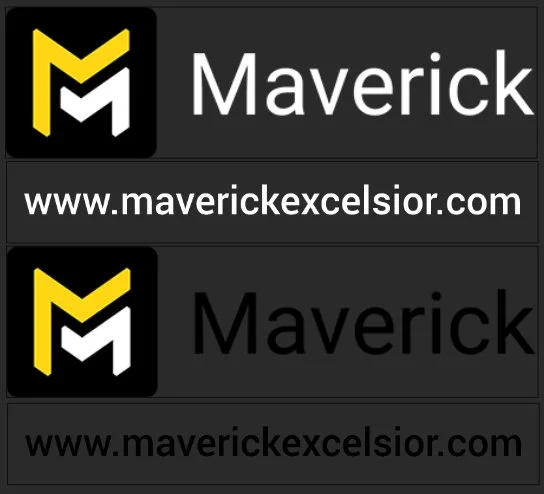
You can switch the background to white if you prefer. Just make sure you're using a version of your logo with dark text so it actually shows up.
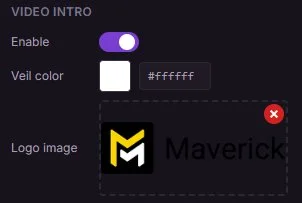
Pro Tip: To preview the intro animation, use the Preview Video option.

3. Video Outro
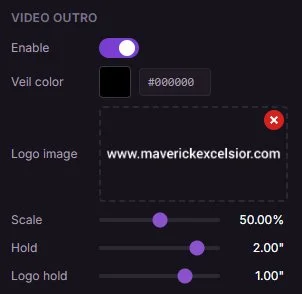
This is where you set up the closing logo for the video.
You can reuse your intro logo, but this is a great chance to leave the customer with a final message. It could be your website URL or a simple "thank you for choosing us".
You have the same scale, hold, and logo hold settings as the Video Intro, and the same rules apply.
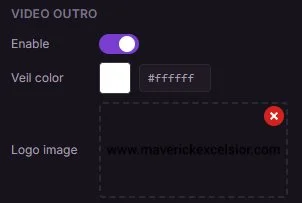
If you go with a white background for the outro, make sure you're using a dark logo or dark text so it's clearly visible.
YouTube Tutorial
Check out the full video tutorial about Branding on our YouTube channel:
Conclusion
Automating your branding is a game-changer for independent designers and established jewelry brands alike. By removing the need for external editing tools, it democratizes the creation of high-end, photorealistic video catalogs. You can produce ready-to-post videos for platforms like Instagram in a fraction of the time.
Showcasing your pieces with a persistent watermark, a polished intro, and a clean outro doesn't just protect your hard work, it instantly boosts your design positioning and brand recognition, which is critical in today's market.
In our next hands-on article, we'll dive into how to apply these same automated settings to your interactive 3D links for a fully immersive customer experience.
Best regards.